What Should I Do if the Emulator Crashes or Freezes on Startup?
When an emulator refuses to open and instead crashes or freezes on startup, it feels like the kind of problem that pops up at the exact moment you sat down excited to play something. Instead of jumping into a game, you’re staring at a loading bar that doesn’t move, a black screen, or the app vanishing like nothing happened. If you’ve hit this wall before, you already know how annoying it is.
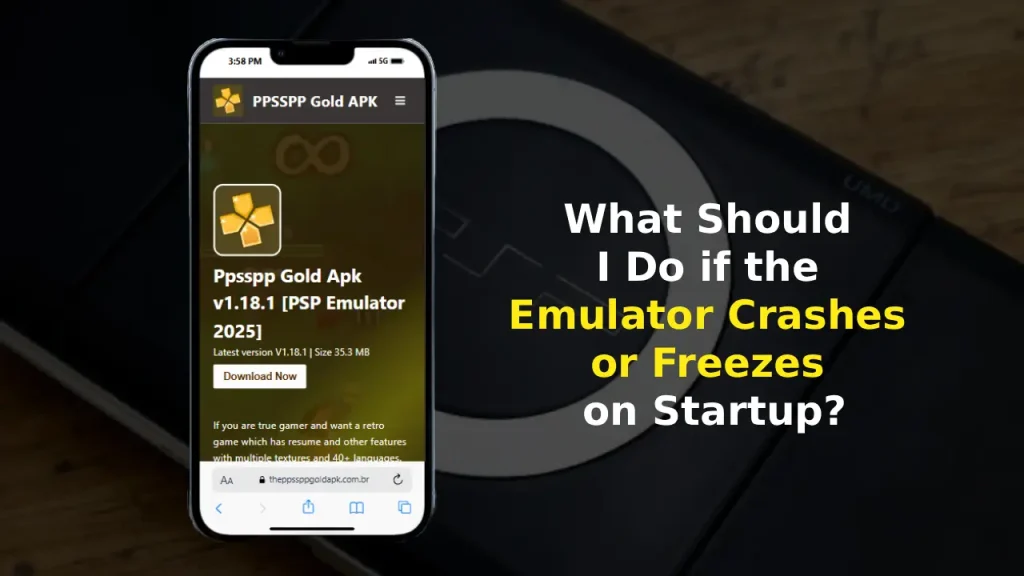
The good news? These issues are almost always fixable. And once you understand how they work, you’ll troubleshoot them faster than any quick-fix YouTube tutorial. This guide breaks down every major cause, explains what’s happening behind the scenes, and shows you the fixes that actually work — especially if the emulator crashes or freezes on startup repeatedly.
Before we get into the deeper stuff, it helps to check that you didn’t accidentally change a setting while experimenting (it happens a lot). For example, many users tweak advanced graphics settings while testing something in PPSSPP Gold or apps connected to their workflow, such as referencing settings of ppsspp gold, and don’t realize the emulator may reject unsupported configurations. A single toggle can break everything.
Why Emulators Crash or Freeze on Startup?
If you’ve ever tried switching between different setups — like running an Android emulator on a laptop and then jumping to a psp pc version of something — you’ve probably noticed that emulators can be a bit moody. They rely heavily on drivers, hardware compatibility, and files that must be clean, complete, and in the right format.
Here’s what usually causes a startup freeze:
- The emulator can’t initialize GPU rendering
- Virtualization is off
- Drivers are outdated
- A ROM is corrupted or mismatched
- An antivirus blocks part of the startup process
- Background apps hog RAM or conflict with rendering
- You’re using the wrong API (OpenGL vs Vulkan)
- Leftover cache files cause boot loops
Sometimes you only discover the real problem by trying a few fixes — and that’s normal.
1. Check Hardware Requirements Before Anything Else
A surprising number of crashes come from trying to open an emulator on hardware that doesn’t support what the emulator expects. This doesn’t mean your device is weak sometimes the emulator simply wants access to features your system doesn’t enable by default.
What you should check:
- RAM: For Android emulators: at least 4GB
- GPU drivers: Must support OpenGL 3.0+, Vulkan, or DirectX depending on the emulator
- Virtualization (VT-x/AMD-V): Required for most Android-based emulators
- Storage: Enough free space for cache files
- OS: Updated and compatible
If everything looks good and the emulator crashes or freezes on startup anyway, move on to deeper troubleshooting.
2. Reset Graphics Settings (Most Effective Fix)
The GPU is often the troublemaker. When the emulator tries to start, it loads the graphics backend first. If that fails, the whole thing collapses.
You can fix this by resetting graphics settings to default.
What to do:
- Switch the rendering engine (OpenGL ↔ Vulkan)
- Disable “hardware transform”
- Turn off shaders
- Reduce resolution scale
- Turn off texture scaling
- Disable frame skipping temporarily
- Reset graphics to “Default”
Even if you’re testing things for settings of ppsspp, restoring defaults is the best first move. It narrows down what’s really causing the freeze.
3. Check Your Emulator’s Installation (PC Version Issues)
On Windows devices, especially if you bounce between different apps and switch versions often — maybe testing the pc version of a tool along with mobile versions — mismatched system libraries can ruin emulator booting.
Common causes include:
- Missing Microsoft Visual C++ redistributables
- DirectX runtime issues
- Conflicting GPU drivers (NVIDIA + Intel hybrid setups)
- DLL conflicts after Windows updates
Fix it:
- Update your GPU drivers
- Install all Visual C++ Packs (2010–2022)
- Reinstall DirectX Runtime
- Delete the emulator folder and reinstall fresh
A clean setup solves boot failures more times than you’d expect.
4. Clear Cache, Save Data, and Temp Files
When the emulator freezes at the loading screen, especially at weird numbers like 0%, 27%, 40%, or 99%, it usually means corrupted cache.
This is also very common among users who switch between psp older versions of emulators or apps, testing modded builds or legacy revisions.
Clear these folders:
- cache
- shaders
- system
- saved data
- temp textures
Your ROMs and BIOS will stay safe because you’re only removing temporary junk.
5. Test ROMs One by One (Corrupted Files Crash Instantly)
If the emulator keeps freezing at the same loading point, you might be dealing with:
- A corrupted ROM
- A mismatched region
- An incomplete dump
- A ROM patched incorrectly
- Wrong file format (e.g., compressed ZIP/7z not extracted)
Try loading another known-good game.
If it opens instantly, you found your culprit.
This also happens when users install patched titles or custom builds from older versions of platforms and don’t realize they’re unstable.
6. Fix Crashes on iOS (Special Case)
If you’re using an emulator that supports the psp iOS version, startup issues usually come from permission or signing errors.
Check:
- The app’s certificate
- Whether the app was revoked
- If you enabled necessary permissions
- iOS version compatibility
iOS is strict, anything unsigned or partially signed will crash before even drawing the UI.
7. Check Virtualization & Hypervisor Conflicts (Android Emulators)
Some emulators need Virtualization to run, but others conflict with hypervisors like Hyper-V.
On Windows:
- Turn ON Virtualization in BIOS
- Turn OFF Hyper-V if your emulator doesn’t support it
- Disable Windows Subsystem for Android if needed
This solves 60% of Android-emulator startup crashes.
8. Check for Installation Errors
(If You Recently Updated or Switched Builds)
If you recently updated the emulator or installed a new build, you might’ve hit a compatibility issue or broken file path.
This is where referencing troubleshooting installation errors becomes helpful.
Fix:
- Uninstall completely
- Delete leftover folders
- Reinstall clean
- Install the correct architecture (ARM, x86, x64)
- Avoid mixing beta & stable builds
Many crashes happen because users keep old config files that don’t match the new version.
9. Turn Off Antivirus/Firewall Temporarily
Some antivirus programs think emulator components are unsafe because they interact with virtualization or system-level APIs.
You don’t have to disable protection permanently.
Just allow:
- Emulator EXE
- Installation folder
- Temp working folders
Once whitelisted, the startup freeze often disappears.
10. Free Up RAM & Close Background Apps
If RAM is low, the emulator fails before it can finish loading shaders and assets.
Close apps running in the background:
- Chrome (it eats RAM like crazy)
- Discord overlays
- Screen recorders
- GPU monitoring tools
- Game boosters that throttle emulators
A clean workspace helps more than people expect.
11. Reinstall the Emulator (Last Resort)
If you tried everything and the emulator crashes or freezes on startup every single time, a full reinstall almost always solves it — especially after switching builds or customizing too many advanced settings.
Just ensure you back up your:
- Savedata
- BIOS
- Cheats
- Textures
- Folder structure
A fresh install removes hidden corrupted files.


Pros & Cons of Fixing It Yourself
Pros
- Saves time instead of waiting for random online advice
- Helps you understand how your system reacts to GPU/CPU loads
- Prevents the same crashes in the future
- Lets you customize performance better
Cons
- Some issues require trial and error
- You might reset settings you liked
- Hardware limitations can’t be bypassed with software fixes
Safety Tips You Shouldn’t Ignore
- Don’t download random “patched builds” of emulators; they break startup consistently
- Avoid using ROMs from unknown sites
- Don’t overclock if you don’t know what each setting does
- Always download stable versions unless you’re testing
- Avoid mixing old files from older versions with newer emulator builds
Final Thoughts
When the emulator crashes or freezes on startup, it’s rarely a permanent issue. Most of the time, it’s a small setting, corrupted file, or conflict you can fix in minutes once you know where to look. The key is understanding what the emulator needs clean graphics settings, proper drivers, enough RAM, compatible ROMs, and a stable environment to run properly.
If you follow each method step by step, you’ll eventually find the root cause. And once you fix it, the emulator usually runs smoother than before.